

How To Log In To The Vivint Host Customer Area
Your Vivint Host Customer Area is the central hub where you can manage your hosting plans, domain names, billing, and support tickets-all from one secure location.
Follow these simple steps to log in to your Vivint Host account:
Step 1: Visit the Login Page
Go to the official Vivint Host Customer Login Page. This is the dedicated page for customers to access their accounts.
Step 2: Enter Your Credentials
On the login page, type in the email address and password you used when you first registered with Vivint Host.
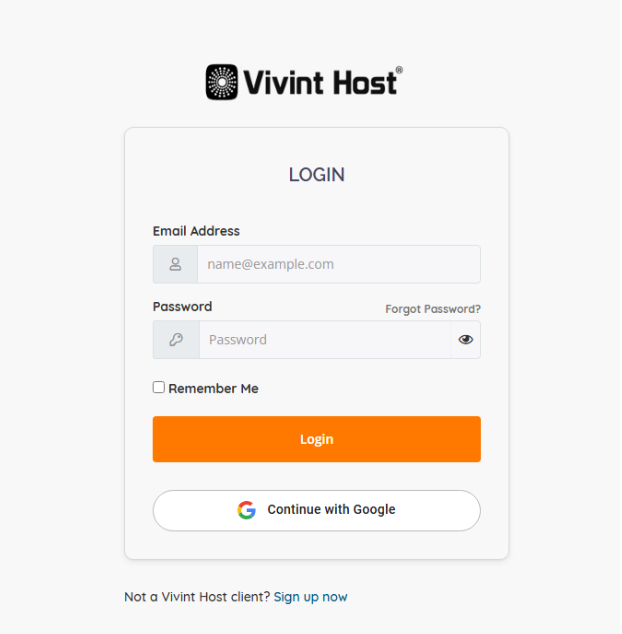
Step 3: Click “Login”
Once your login credentials are filled in, click the Login button to proceed.
Step 4: Access the Vivint Host Dashboard
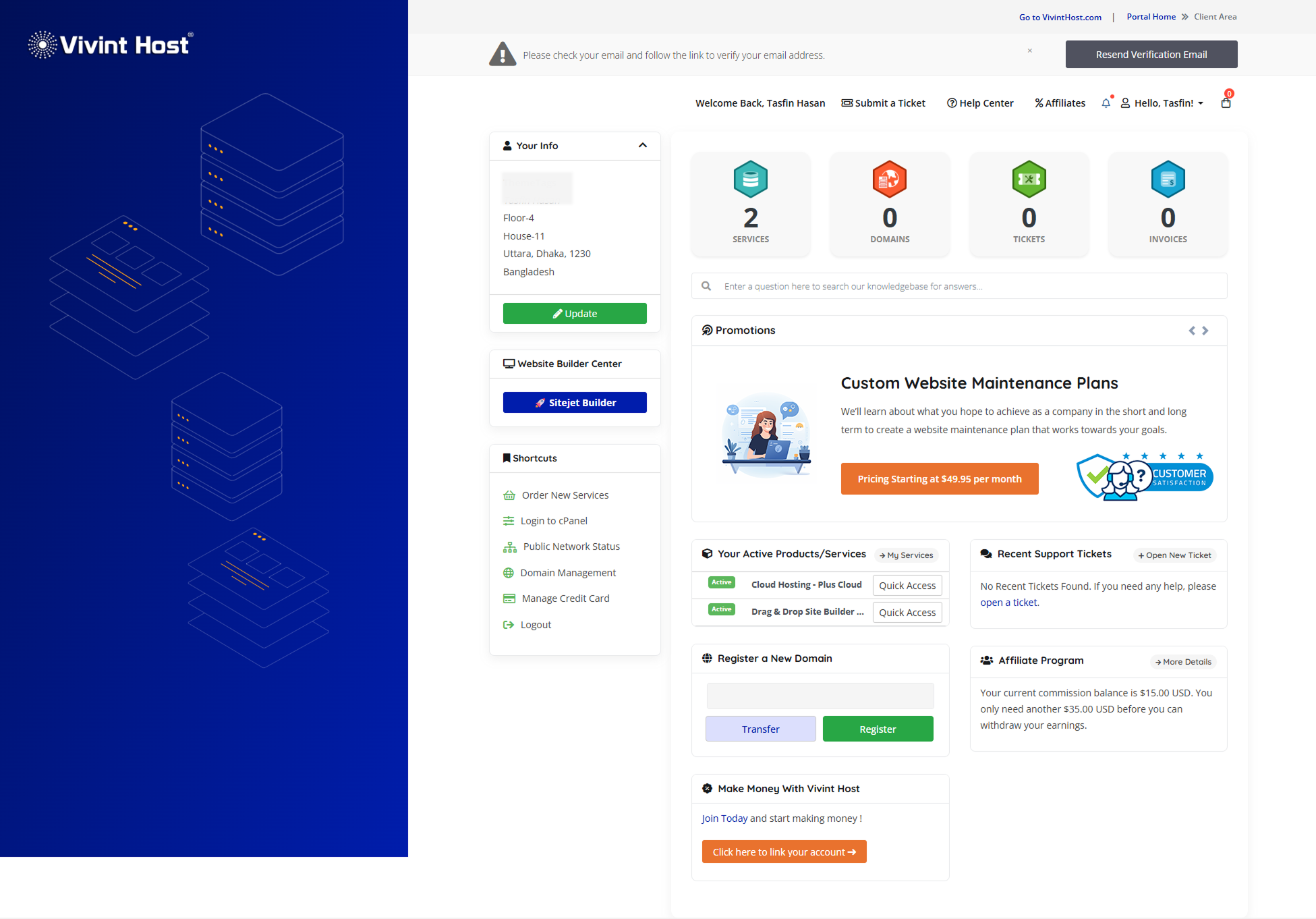
After successfully logging in, you’ll be redirected to your Client Dashboard. From here, you can:
- View and manage your hosting plans
- Register or renew domain names
- Submit and track support tickets
- View and pay invoices
- Update your account settings
Common Login Issues and How to Fix Them
If you're having trouble logging in, here are the most frequent issues and what you can do to resolve them:
1. Forgot Your Password
If you can’t remember your password:
- Click the “Forgot Password?” link on the login page.
- Enter the email address you used to register with Vivint Host.
- You’ll receive a password reset link via email. Follow the instructions to set a new password.
2. Two-Factor Authentication Issues
If you're prompted for a two-factor authentication (2FA) code:
- Open the authenticator app you used during setup-such as Google Authenticator or Authy.
- Enter the 6-digit code shown in the app (the code refreshes every 60 seconds).
- If you can’t access your 2FA app, use your backup code saved during setup.
- Still stuck? Contact our Support Team and provide your 4-digit support PIN so we can verify your identity and help you regain access.
3. CAPTCHA Errors
Vivint Host uses Google’s Invisible CAPTCHA to enhance login security.
If you’re seeing a CAPTCHA error:
- Try logging in using Incognito Mode in your browser (recommended: Google Chrome).
- Make sure your internet connection allows access to Google services. You can check by visiting www.google.com.
- If CAPTCHA continues to fail, try using a different browser or device.
Need More Help?
Our support team is available 24/7 to assist you. If you’re unable to log in or encounter unexpected issues, please reach out through our Support Page with as much detail as possible, including your registered email and support PIN.