

How to Disable CAPTCHA on WordPress
CAPTCHA is designed to distinguish between human users and bots by displaying a challenge or performing automatic background verification. It’s often enabled to enhance security and reduce spam on websites.
However, when you’re migrating your WordPress site to Vivint Host, it’s essential to temporarily disable CAPTCHA on your login page (https://yourdomain.com/wp-admin). This allows our support engineers to access your WordPress dashboard and manage the migration without interruption.
If your site uses Google reCAPTCHA or another CAPTCHA solution, here's how to disable it based on your setup:
Method 1: Disabling CAPTCHA via Plugin
If you’ve enabled CAPTCHA through a plugin like Advanced Google reCAPTCHA, follow these steps to disable it:
- Log into your WordPress dashboard.
- Navigate to Settings → Advanced Google reCAPTCHA.
In the CAPTCHA status dropdown, set it to Disabled.
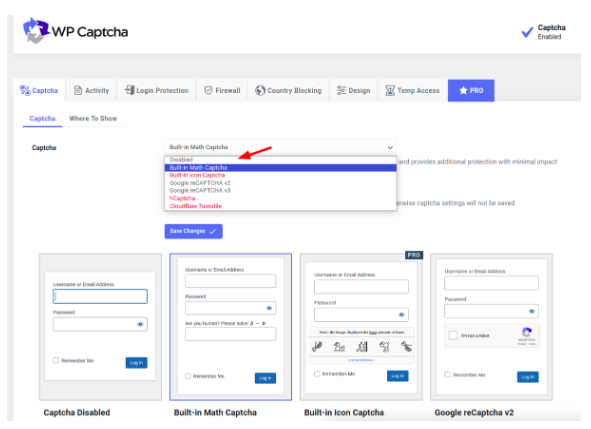
- Click Save Changes.
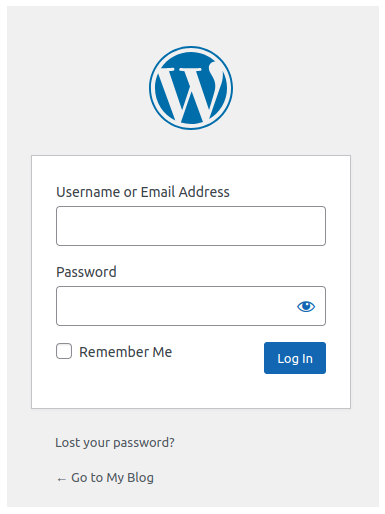
After disabling, open your WordPress login page in an incognito browser or clear your browser cache to verify that CAPTCHA no longer appears.
Your login page should now load normally without any CAPTCHA challenges.
Method 2: Disabling CAPTCHA Added via Theme Code
If the CAPTCHA was manually added using custom code in your theme’s files, you’ll need to remove that code manually. Here’s how:
- Access your current hosting’s File Manager or connect via FTP.
- Go to the following directory: /wp-content/themes/your-theme-name/
- Locate the functions.php file and open it for editing.
- Look for any code snippets related to Google reCAPTCHA. It might look like this:
// Load Google reCAPTCHA script
function login_style() {
wp_register_script('login-recaptcha', 'https://www.google.com/recaptcha/api.js', false, null);
wp_enqueue_script('login-recaptcha');
}
add_action('login_enqueue_scripts', 'login_style');
// Add reCAPTCHA to login form
function add_recaptcha_on_login_page() {
echo '';
}
add_action('login_form','add_recaptcha_on_login_page');
- Delete or comment out the CAPTCHA-related code.
- Save your changes to the functions.php file.
Once done, clear your browser cache or use an incognito window to check your login page. CAPTCHA should now be disabled.
Final Check
After applying either of the above methods, visit your admin login page at:
https://yourdomain.com/wp-admin
If everything was done correctly, you should see the standard WordPress login screen without CAPTCHA.
Need Assistance?
If you’re unsure about modifying your files or disabling CAPTCHA safely, our support team is available 24/7. At Vivint Host, we’re always ready to guide you through technical processes-step by step.