

How to Register a Domain, Sign Up for Hosting & Create Your Vivint Host Account
At Vivint Host, we’ve made it easy to launch your website by bringing everything you need-domain registration, cloud hosting, and account management-under one simple, powerful platform.
This quick guide will walk you through the entire process of registering a domain, choosing the right hosting plan, and setting up your Vivint Host account.
Step 1: Search for Your Domain Name
Visit https://www.vivinthost.com/domains and enter the domain name you want to register in the search bar. Click the search icon to check its availability.
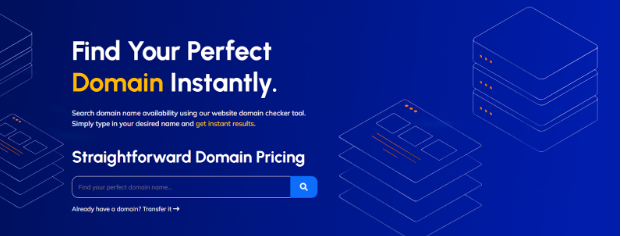
In this example, we’ll check the availability of YourDomainName.com. Once you’ve typed it in, press search, and the next page will open at https://my.vivinthost.com/cart.php?a=add&domain=register.
Step 2: Check Domain Availability and Choose a Registration Period
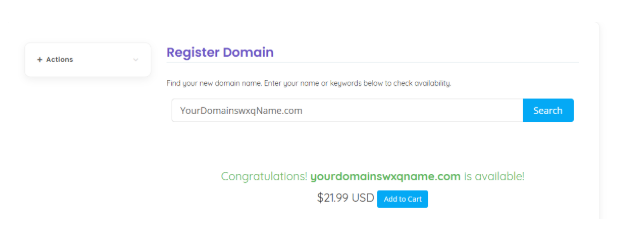
If your domain is available, you’ll see a confirmation message next to the status-marked in green. You’ll then choose how long you'd like to register the domain for.
(Alternative): Transfer Your Existing Domain
Already own a domain? No problem.
To transfer it to Vivint Host:
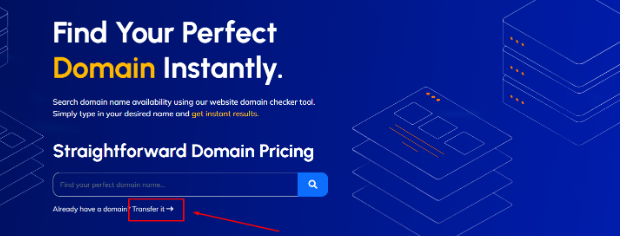
- Click on the Transfer tab next to the search bar.
- Enter the domain name you want to transfer.
- Make sure your domain is unlocked at your current registrar and you have the EPP/Auth code ready.
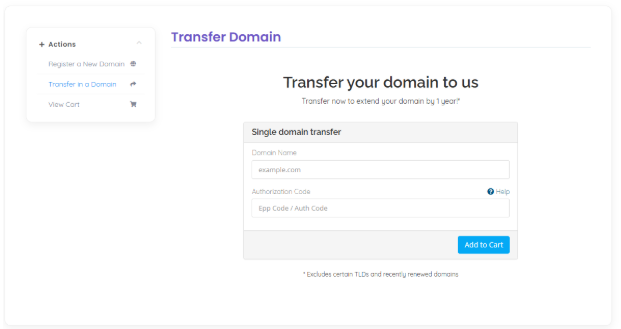
- Proceed through the steps to complete the transfer process.
Transferring your domain lets you manage everything-domain, hosting, and support-in one place with Vivint Host.
Step 3: Choose a Hosting Plan
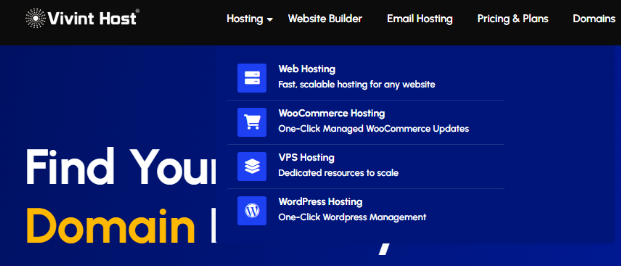
From the menu bar, click Hosting and navigate to the hosting plan you prefer. We offer four types of hosting-choose the one that best suits your business:
- Web Hosting: Fast, scalable hosting for any website
- WooCommerce Hosting: One-click managed WooCommerce updates
- VPS Hosting: Dedicated resources for scalable performance
WordPress Hosting: One-click WordPress management
Step 4: Connect Your Domain with the Hosting Plan
Since you're registering a domain as part of this process, choose "Use a domain already in my shopping cart" when asked. Then, confirm your domain name from the dropdown menu and click Use.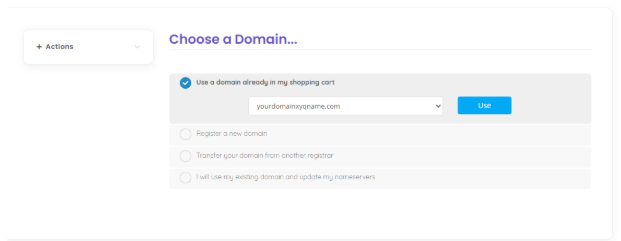
Step 5: Confirm Hosting and Checkout
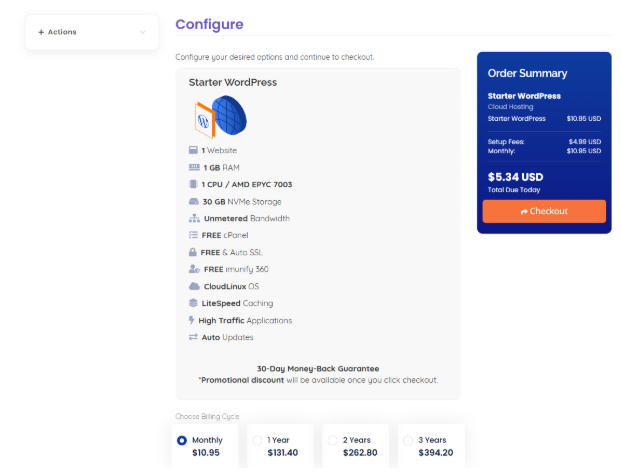
Next, select your hosting billing cycle. In our case, we’ll go with the 1-month plan at $10.95/month. Remember, longer commitments offer better rates.
Once you’ve made your selection, click Checkout.
Step 6: Choose Hosting Add-ons
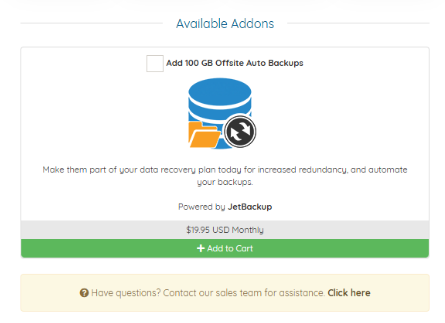
We offer different add-ons based on the hosting plan you choose. Here, you’ll see the add-ons available for your selected plan. Enhance your hosting experience with these important add-ons:
- DNS Management – for faster and more reliable domain resolution
- Auto Backup – add 100 GB offsite auto backup
- ID Protection – to keep your personal information private
We recommend enabling all three for the best experience. Check the boxes next to each and click Update Cart to proceed.
Step 7: Review Your Order
Before proceeding to checkout, make sure everything looks right:
- Hosting Plan
- Domain
- Add-ons
If you have a promotional code, you can enter it now. Otherwise, click the green Checkout button to continue.
Step 8: Create Your Vivint Host Account
Now you’ll be prompted to fill in your account details, including contact and domain registration information.
Step 9: Provide Payment Information
Enter your credit card details or preferred payment method in the fields provided. Make sure all the details are accurate to avoid any issues.
Step 10: Final Review and Complete Your Order
Once everything has been filled out and double-checked, click the green "Complete Order" button to finalize your purchase.
Congratulations! You’ve just registered a domain, selected a powerful hosting plan, and set up your Vivint Host account-all in just a few minutes.
If you ever need help along the way, our expert team is here 24/7 to support you. Welcome to Vivint Host-where speed, security, and simplicity meet.