

How to Restore Deleted Email Account Namecheap
Losing access to important emails can be stressful, but with the right steps, you can quickly restore them. At Vivint Host, we make it simple to back up and recover your emails using the Open-Xchange platform (available at Private Email). Follow this guide to securely export and import your emails.
Backing Up a Single Email
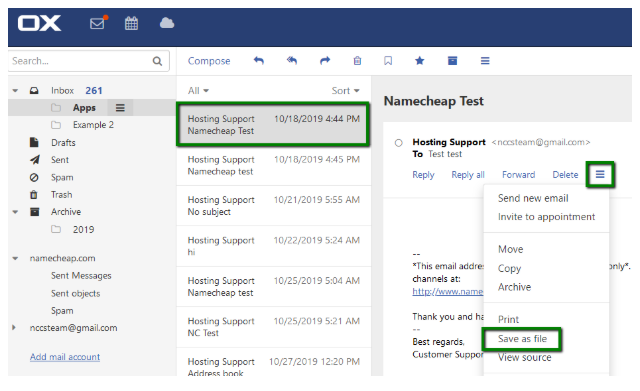
- Locate the email you want to save in your inbox.
- Click on the three-dashes icon (⋮) next to the email.
- Select "Save as file" from the dropdown menu.
- The email will be downloaded to your computer in .eml format.
Backing Up Multiple Emails at Once
Need to export several emails? Here’s how:
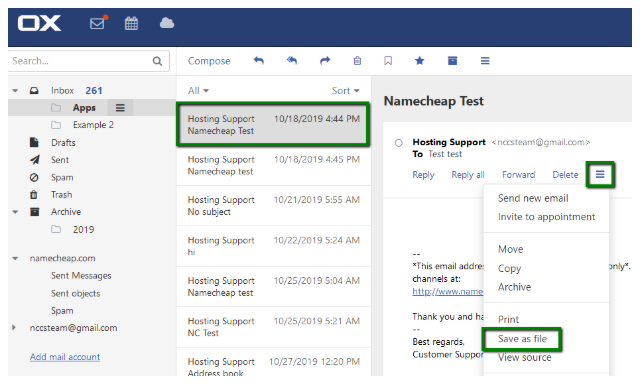
- Select all desired emails by pressing CTRL + A (or manually check each one).
- Click the three-dashes icon (⋮).
- Choose "Save as file".
- The emails will be compressed into a .zip file and downloaded to your device.
Important Note: Only emails currently visible on your screen will be included in the backup.
Importing Emails Back to Private Email
Once you’ve backed up your emails, restoring them is straightforward:
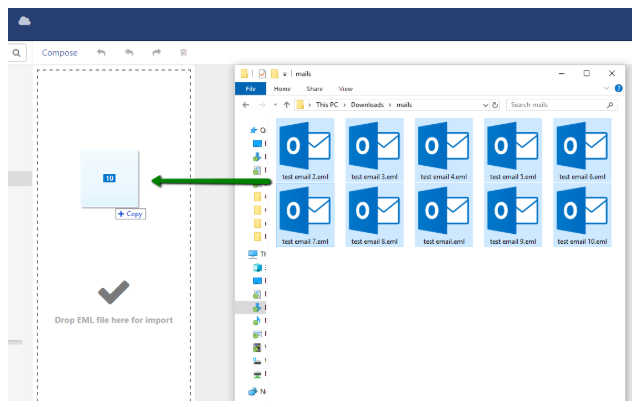
- Open your Private Email (App Suite) webmail.
- Locate the .eml file(s) on your computer.
- Simply drag and drop the file(s) into the desired folder.
Note: Only .eml files can be imported—other formats won’t work.
(Insert image showing drag-and-drop import process)
After the transfer completes, you’ll see the restored emails marked as unread along with a confirmation message.
That’s It! Your Emails Are Restored.
At Vivint Host, we’re committed to keeping your data safe and accessible. If you run into any issues, our 24/7 expert support team is always ready to help.
Need Assistance? Contact Our HelpDesk