

How to Backup Your Website (WordPress, Joomla)
Let’s be honest-most website owners don’t think about backups until it’s too late. Then suddenly:
- A plugin update crashes your site
- A hacker locks you out
- You accidentally delete critical files
At Vivint Host, we’ve seen it all. That’s why we’re giving you the exact backup methods our support team recommends to customers every day. Follow these steps, and you’ll never lose sleep over your website again.
Backing Up Your WordPress Website
If you ever need to migrate your site or restore it after an issue, having a full WordPress backup is essential. Here are several trusted tools you can use:
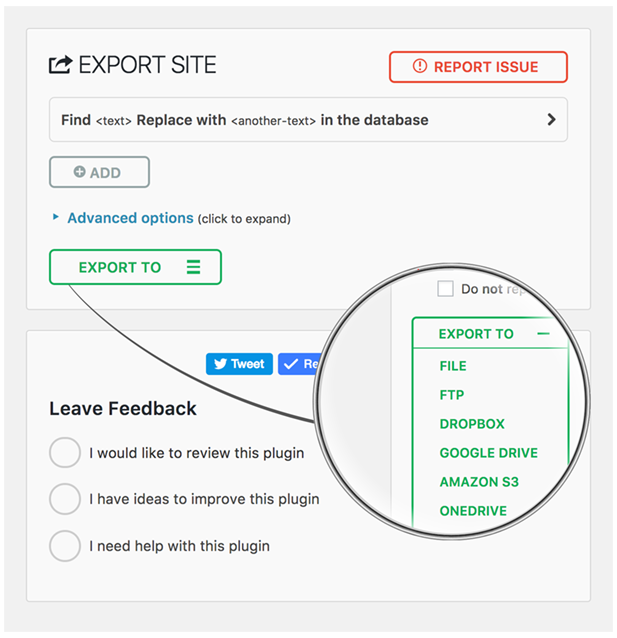
Option 1: All-in-One WP Migration
Creating the Backup:
- Install and activate the All-in-One WP Migration plugin from your WordPress dashboard.
- Follow the plugin’s backup process to generate a full copy of your website.
Saving the Backup:
- Access your site’s files through a file manager.
- Locate the backup in the /wp-content/ai1wm-backups/ directory.
- Download the backup file to your computer for safekeeping.
Restoring or Migrating the Backup:
- If you’re moving your site to Vivint Host or restoring it, submit a migration request through your Vivint Host panel and upload the backup file.
Option 2: Duplicator Plugin
Creating the Backup:
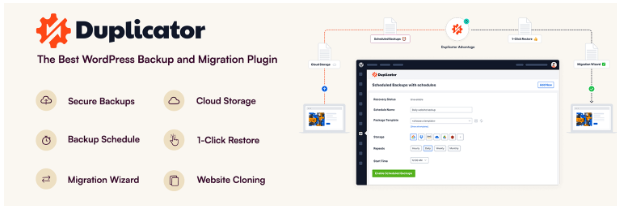
- Install the Duplicator plugin and activate it.
- Go to Duplicator → Packages and select Create New.
- Complete the setup steps, then click Next to scan your site.
- After the scan, click Build to create your backup package.
Saving the Backup:
- Once the package is built, download the .zip backup file.
- You’ll also find it stored under /wp-content/backups-dup-lite/, depending on your plugin settings.
Option 3: UpdraftPlus
Creating the Backup:
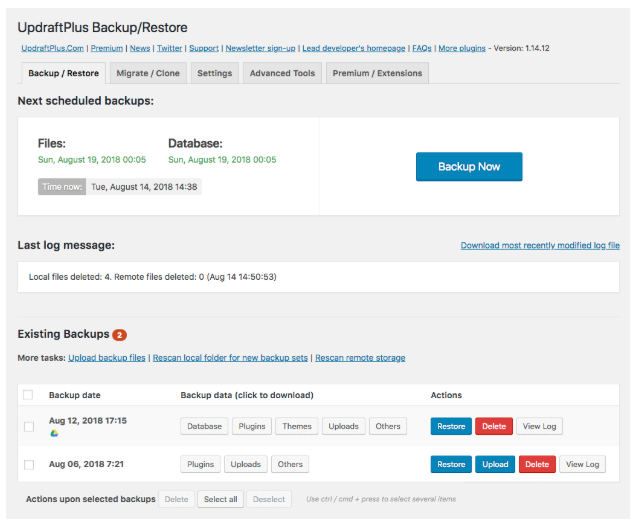
- Install and activate UpdraftPlus.
- Navigate to Settings → UpdraftPlus Backups and click Backup Now to create a fresh backup.
Saving the Backup:
- Your backups are stored in /wp-content/updraft/.
- Make sure to download all backup components (plugins, themes, uploads, and database files).
- It’s best to compress all parts into a single archive file (.zip, .tar.gz, .tar, or .rar) for easier handling.
Option 4: WPvivid Backup Plugin
Creating the Backup:
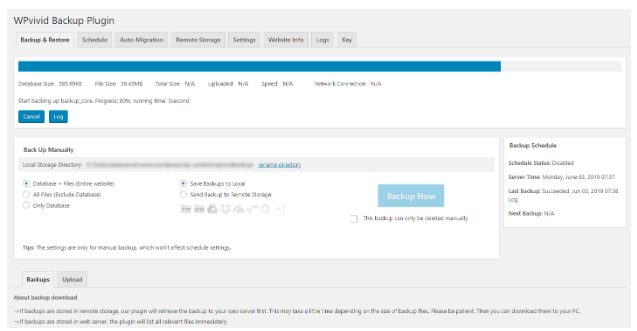
- Install and activate the WPvivid Backup Plugin.
- In your WordPress dashboard, navigate to WPvivid Backup → Backup & Restore.
- Click Backup Now to start creating your backup.
Saving the Backup:
- After the backup completes, scroll to the backup list and download the file to your computer.
Backing Up Your Joomla Website
Protecting your Joomla site is just as critical. A reliable backup ensures you can recover quickly from technical problems, hacks, or accidental changes. Here's the proper way to back up your Joomla site:
Step 1: Verify Your Configuration
Before proceeding, confirm that your Joomla site has a functional configuration.php file. This file is typically located in the main directory of your Joomla installation. It’s important to ensure it’s intact before performing a backup.
Step 2: Install Akeeba Backup Extension
- Log into your Joomla administrator panel.
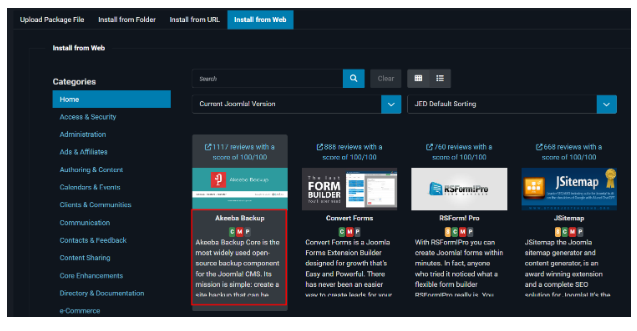
- Go to System → Install → Extensions → Install from the Web.
- Search for Akeeba Backup and click Install.
- After a successful installation, you’ll see a confirmation message.
Step 3: Create a Backup
- Navigate to Components → Akeeba Backup → Backup Now.
- If it’s your first time launching Akeeba Backup, you’ll be guided through a Configuration Wizard. This step optimizes backup settings based on your server environment.
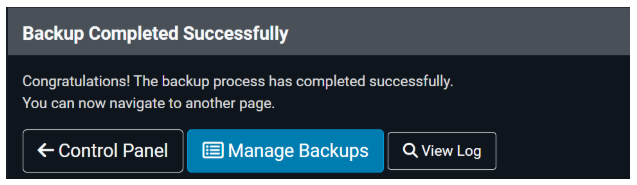
- Click Backup Now to initiate the backup process.
- Allow the backup to complete without closing the browser window. Interruptions could cause backup failures.
Step 4: Download Your Joomla Backup
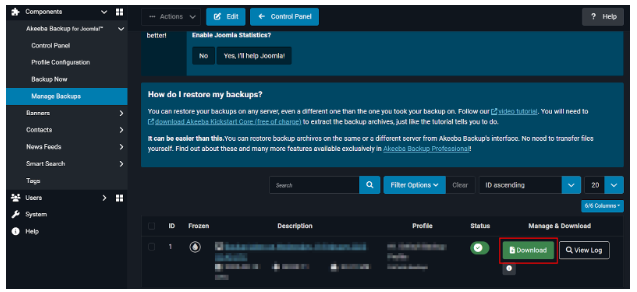
- Once the backup is complete, go to Components → Akeeba Backup → Manage Backups.
Download the .jpa backup file to your computer and store it safely.
Backup Best Practices (From Vivint Host’s Support Team)
The 3-2-1 Rule:
- Keep 3 copies of your backup
- On 2 different devices (e.g., computer + external drive)
- With 1 copy off-site (like Google Drive)
Automate When Possible:
- Plugins like UpdraftPlus can auto-backup weekly
Backup Before Any Big Change
- Updating WordPress/Joomla core? Backup first.
- Installing a new plugin? Backup first.
- Breathing near your site? Okay, maybe not-but you get the idea.
Need Help? We’re Here 24/7
At Vivint Host, we don’t just sell hosting—we protect your online business. If backups seem overwhelming:
- Our support team can set up automated backups for you
- We offer secure cloud storage for your backups
- Migrating? We’ll handle the entire process
Don’t risk losing your data-click chat now, and we’ll set up your backups right away.