

How to Change Nameservers at Vivint Host
When managing your website or domain, you may need to update your nameservers-especially if you're pointing your domain to a different hosting provider or using external DNS services.
Nameservers play a key role in directing internet traffic. They act like a directory, translating your domain name (like yourdomain.com) into the IP address of the server where your website is hosted.
Think of it like this: If the internet were a phone system, nameservers would be the phone book. Rather than memorizing the IP address of every site, your browser asks the nameserver, “Where can I find this domain?” and it gets pointed in the right direction.
In this guide, we’ll walk you through how to update your domain’s nameservers from your Vivint Host client portal.
Step 1: Log in to Your Vivint Host Client Area
Go to the Vivint Host client login page and sign in with your credentials.
Step 2: Access the Domains Section
Once logged in, click on the “Domains” tab in your client dashboard. This section shows a list of all the domains you’ve registered or managed through Vivint Host.
Step 3: Manage the Domain You Want to Update
Next to the domain name you’d like to update, click the three-dot menu and select “Manage Domain”.
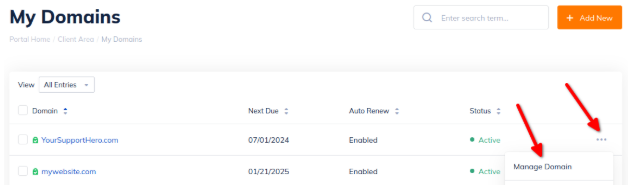
Step 4: Open the Nameservers Tab
Inside the domain management screen, navigate to the “Nameservers” section from the left-hand menu.
Step 5: Set Your Custom Nameservers
By default, your domain will use Vivint Host's default nameservers for optimal DNS performance and management.
To use your own nameservers or point your domain to a different provider:
- Select “Use custom nameservers (enter below)”
- Enter the custom nameservers provided by your new host or DNS provider.
For example:
- ns1.yourcustomdns.com
- ns2.yourcustomdns.com
Once you switch to custom nameservers, you will no longer be able to manage DNS records from Vivint Host’s control panel. Also, DNS changes can take up to 24 hours to fully propagate across the internet. During this time, your website or services might experience temporary disruptions.
What’s Next?
Once your nameservers are updated, the changes will start propagating across the internet. This can take anywhere from a few minutes to 24 hours. During this period, it’s completely normal to experience brief interruptions or delays in service.
To ensure everything is working correctly, you can:
- Use online tools like DNS Checker to track propagation status
- Set up or manage your DNS records if you're using an external provider
- Reach out to Vivint Host support if you need help verifying the setup
If your website is still not loading after 24 hours, don’t worry-we’re here for you. Contact our 24/7 expert support team, and we’ll help get everything back on track.